Following on from my article looking at the Pimoroni Plasma 2350 W I decided to do something interesting with the Wifi interface that would connect to a Drupal site.
The firmware of the Plasma 2350 W from Pimoroni comes with an example that connects to a free API to update the colour randomly. Once I saw this in action I realised that it shouldn't be too hard to convert that to pull the data from a Drupal REST service instead.
It is quite easy to create RESTful services in Drupal; it just needs a single class. All I would need to do is create a form to control the colour that is selected in the REST service.
In this article we will look at creating a Drupal module containing a RESTful interface, which we will connect to with the Plasma 2350 W to update the colour of the lights.
Setting Up The Form
In order to allow the colour of the LED lights to be set I needed to create a form that would do just that.
To save the colour to the system we will use the state service, which is a handy little key/value service that allows us to write simple values to the database. This service is a good way of storing values that aren't part of the Drupal configuration system. Ideally, you want values that can be easily recreated by the system if they don't already exist. The colour setting is therefore an ideal candidate for the state service.
Setting the form up with this service injected is simple enough, but we can also simplify the form integration by abstracting away the get and set methods for the state itself.
This is what the basic structure of the form class looks like.
namespace Drupal\hashbangcode_plasma\Form;

use Drupal\Core\Form\FormBase;
use Drupal\Core\Form\FormStateInterface;
use Drupal\Core\State\StateInterface;
use Symfony\Component\DependencyInjection\ContainerInterface;

class SetColourForm extends FormBase {

  /**
   * The state service.
   *
   * @var \Drupal\Core\State\StateInterface
   */
  protected StateInterface $state;

  public static function create(ContainerInterface $container) {
    $instance = new static();
    $instance->state = $container->get('state');
    return $instance;
  }

  /**
   * Get the colour from the state service.
   *
   * @return string
   *   The colour.
   */
  public function getColourState() {
    return $this->state->get('hashbangcode_plasma.colour', '#ffffff');
  }

  /**
   * Set the colour in the state interface.
   *
   * @param string $colour
   *   The colour to set.
   */
  public function setColourState($colour) {
    $this->state->set('hashbangcode_plasma.colour', $colour);
  }

  public function buildForm(array $form, FormStateInterface $form_state) {
    // Add form here.
  }

  public function submitForm(array &$form, FormStateInterface $form_state) {
    // Add submit here.
  }

}
The main thing to note here is that the state service has a get() method that allows us to set a default value. This is set to pure white (i.e. #ffffff) in the code above.
The form for this project just needs to accept the colour and allow the form to be submitted. Interestingly, Drupal comes with a "color" field type, which is a wrapper around the HTML input type of "color". This means we don't need to include any extra libraries to get the colour selection working, we can just add a single field with the appropriate type.
public function buildForm(array $form, FormStateInterface $form_state) {
  $form['colour'] = [
    '#type' => 'color',
    '#title' => $this->t('Colour'),
    '#default_value' => $this->getColourState(),
    '#required' => TRUE,
  ];

  $form['submit'] = [
    '#type' => 'submit',
    '#value' => 'Set Colour',
  ];

  return $form;
}
The HTML color field type is an interesting aside, whilst it is widely supports and allows colour selection via a simple HTML element, I have seen at least 3 different interfaces for the input across different devices and browsers.
The submit handler for the form is pretty small. We just need to extract the colour value from the form state, use the setColourState() method that we set up at the start to write it to the state service, and then rebuild the form so that the new value appears in form after the page has reloaded.
public function submitForm(array &$form, FormStateInterface $form_state) {
  $colour = $form_state->getValue('colour');
  $this->setColourState($colour);
  $form_state->setRebuild();
}
That's pretty much it for the form, but we can improve it a little by preventing abuse with the Drupal flood service.
Flood Protection
What I didn't want happening was that the form went live and people just started abusing it by changing the colour every few seconds. Thankfully, Drupal has a built in service called flood that gives us the ability to prevent abuse of the form by tracking the number of submits over a given period and comparing this against a threshold.
To get this working we need to add the flood service to the form in much the same way as the state service was added.
/**
 * The flood service.
 *
 * @var \Drupal\Core\Flood\FloodInterface
 */
protected FloodInterface $flood;

public static function create(ContainerInterface $container) {
  $instance = new static();
  $instance->state = $container->get('state');
  $instance->flood = $container->get('flood');
  return $instance;
}
We then update the submit handler so that when the user changes the colour we register their interaction with the flood service. In this case we use the IP address of the user to register this interaction.
public function submitForm(array &$form, FormStateInterface $form_state) {
  $colour = $form_state->getValue('colour');
  $this->setColourState($colour);
  $form_state->setRebuild();

  // Register flood handler.
  $floodIdentifier = $this->getRequest()->getClientIp();
  $this->flood->register('hashbangcode_plasma.plasma_flood_protection', self::ABUSE_WINDOW, $floodIdentifier);
}
With that in place we can add a validation handler to the form to check on the state of the flood threshold. If the user's submission triggers the flood threshold (which is set to 30 times in 10 minutes) then we reject the submission and give the user an error message.
public function validateForm(array &$form, FormStateInterface $form_state) {
  parent::validateForm($form, $form_state);

  $floodIdentifier = $this->getRequest()->getClientIp();
  if (!$this->flood->isAllowed('hashbangcode_plasma.plasma_flood_protection', 30, 610, $floodIdentifier)) {
    $form_state->setErrorByName('', $this->t('Too many uses of this form from your IP address. This address is temporarily banned. Try again later.'));
  }
}
If you want to know more about this then I've previously written about the flood system in Drupal, and there's a lot more detail about this system in that article.
Now that we have a (protected) form we can build a REST resource to allow the colour to be displayed as a JSON feed.
Creating The REST Resource
The API system in Drupal is very powerful and comes with plugins for formats and authentication mechanisms out of the box. For the purposes of this project we only need the JSON formatter and the basic "cookie" authentication provider, which allows easy anonymous access to the resource.
To define a RESTful API interface we first need to create a plugin class. This class will set the endpoint and create the code needed to power the interface. In addition to this, as our colour is stored in the state service we will use dependency injection to inject the service into the class.
/**
 * Provides a resource for the plasma interface.
 */
#[RestResource(
  id: "plasma",
  label: new TranslatableMarkup("Plasma resource"),
  uri_paths: [
    "canonical" => "/plasma/[REDACTED]",
  ]
)]
class PlasmaResource extends ResourceBase {
}
We want to define a GET method for this resource so we need to create a method called get() that will be triggered automatically by the REST service. The method is pretty simple really, we define out response payload as an array, and add a single field called "colour" to it. Then we use the state service to pull the colour out of the state set by the form, or we just default to pure white.
Normally when we return a response from a REST resource we would create a new Drupal\rest\ResourceResponse object, which handles all of the upstream formatting that is done to transform the payload into a JSON string. For the purposes of this project that response type isn't suitable since it would be cached by Drupal. As the Plasma 2350 W is making an anonymous request to the REST endpoint (so we don't have to deal with authentication on the device) the updates made in the form wouldn't be picked up.
After some experimentation, I found that the most effective way to turn off caching for a RESTful resource that will be consumed by anonymous users is to return a new Drupal\rest\ModifiedResourceResponse object. This acts in the same way as the ResourceResponse, but assumed that every response is unique and will therefore prevent the response from being cached. I have seen lots of people suggest setting the cache max-age setting to 0, but this doesn't work for anonymous traffic.
Here is the contents of the get() method.
public function get() {
  $colour = [
    'colour' => $this->state->get('hashbangcode_plasma.colour', '#ffffff'),
  ];

  // Do not cache the response.
  return new ModifiedResourceResponse($colour, 200);
}
The REST resource will respond with a 200 status code, and a small payload of JSON.
For completeness, here is the REST plugin class in full.
<?php

namespace Drupal\hashbangcode_plasma\Plugin\rest\resource;

use Drupal\Core\State\StateInterface;
use Drupal\Core\StringTranslation\TranslatableMarkup;
use Drupal\rest\Attribute\RestResource;
use Drupal\rest\ModifiedResourceResponse;
use Drupal\rest\Plugin\ResourceBase;
use Symfony\Component\DependencyInjection\ContainerInterface;

/**
 * Provides a resource for the plasma interface.
 */
#[RestResource(
  id: "plasma",
  label: new TranslatableMarkup("Plasma resource"),
  uri_paths: [
    "canonical" => "/plasma/[REDACTED]",
  ]
)]
class PlasmaResource extends ResourceBase {

  /**
   * The state service.
   *
   * @var \Drupal\Core\State\StateInterface
   */
  protected StateInterface $state;

  public static function create(ContainerInterface $container, array $configuration, $plugin_id, $plugin_definition) {
    $instance = new static(
      $configuration,
      $plugin_id,
      $plugin_definition,
      $container->getParameter('serializer.formats'),
      $container->get('logger.factory')->get('rest')
    );
    $instance->state = $container->get('state');
    return $instance;
  }

  public function get() {
    $colours = [
      'colour' => $this->state->get('hashbangcode_plasma.colour', '#ffffff'),
    ];

    // Do not cache the response.
    return new ModifiedResourceResponse($colours, 200);
  }

}
With this in place we now need to enable the resource since all REST resources are initially disabled by default.
Drupal doesn't have a built in interface to allow REST resources to be enabled or configured, but we can use the REST UI module to easily enable the Plasma resource and set the sorts of methods, formats, and authentications that it will use. With the REST UI module installed we can enable the Plasma resource and allow it to accept GET requests, which now looks like this.

This will produce a configuration entity that we can export and write to our Drupal configuration directory and deploy upstream.
langcode: en
status: true
dependencies:
  module:
    - hashbangcode_plasma
    - serialization
    - user
id: plasma
plugin_id: plasma
granularity: resource
configuration:
  methods:
    - GET
  formats:
    - json
  authentication:
    - cookie
Of course, we can't access the RESTful interface without setting the permissions for the resource, so the final step here is to allow anonymous access to the plasma resource. I've redacted the actual path of the resource in the article, but once accessed we see the following output being produced.
{"colour":"#ffffff"}
Altering this colour via the colour form and refreshing the REST resource will show us a new colour.
{"colour":"#19bbbe"}
That's everything set up and working in Drupal, now let's look at using MicroPython to pull the colour from the API and change the colour of the lights.
Writing MicroPython
As I mentioned before, the firmware of the Plasma 2350 W from Pimoroni comes with a MicroPython script that connects to a free API that contains a colour. Every 120 seconds the MicroPython connects to this API, converts the HEX code it finds to RGB values, and updates the colour of the LED lights.
What I needed to do was update the URL used, and reduce the amount of time between updates. This is just a case of altering the URL variable in the script.
URL = "https://www.hashbangcode.com/plasma/[REDACTED]"
Our custom JSON feed uses a different field to the original feed, so we just need to update the code that extracts that value from the feed.
    # extract hex colour from the data
    hex = j["colour"]
Here is the full script, which is quite similar to the original script, but I've simplified things slightly.
import time

import urequests
from ezwifi import connect
from machine import Pin

import plasma

URL = "https://www.hashbangcode.com/plasma/[REDACTED]"
UPDATE_INTERVAL = 20  # refresh interval in secs

NUM_LEDS = 66

# wifi connection failed
def wifi_failed(message=""):
    print(f"Wifi connection failed! {message}")

# Print out WiFi connection messages for debugging
def wifi_message(_wifi, message):
    print(message)

def hex_to_rgb(hex):
    # converts a hex colour code into RGB
    h = hex.lstrip("#")
    r, g, b = (int(h[i:i + 2], 16) for i in (0, 2, 4))
    return r, g, b

# set up the Pico W's onboard LED
pico_led = Pin("LED", Pin.OUT)

# set up the WS2812 / NeoPixel™ LEDs
led_strip = plasma.WS2812(NUM_LEDS, color_order=plasma.COLOR_ORDER_BGR)

# start updating the LED strip
led_strip.start()

# set up wifi
try:
    connect(failed=wifi_failed, info=wifi_message, warning=wifi_message, error=wifi_message)
except ValueError as e:
    wifi_failed(e)

while True:
    r = urequests.get(URL)
    j = r.json()
    r.close()

    # flash the onboard LED after getting data
    pico_led.value(True)
    time.sleep(0.2)
    pico_led.value(False)

    # extract hex colour from the data
    hex = j["colour"]

    # and convert it to RGB
    r, g, b = hex_to_rgb(hex)

    # light up the LEDs
    for i in range(NUM_LEDS):
        led_strip.set_rgb(i, r, g, b)
    print(f"LEDs set to {hex}")

    # sleep
    print(f"Sleeping for {UPDATE_INTERVAL} seconds.")
    time.sleep(UPDATE_INTERVAL)
This code (along with the wifi connection details) was uploaded to the Plasma 2350 W using Thonny. Once plugged into power the device starts quickly and picks up the colour from the website.
Conclusion
This all came together pretty quickly. Most of the work involved was setting things up in Drupal and deploying the code to the site as the MicroPython took just a few minutes. If you are new to RESTful resources in Drupal then you might not realise that you need the REST UI module installed for you to configure things. You can, of course, configure RESTful resources using hand crafted configuration files, but I tend to avoid doing that if possible.
I've redacted the paths I used in an effort to maintain the security of my site, and the device. The instructions I've included should be enough to get started here if you want to set things up on your own. All you need to run this is the Plasma 2350 W starter kit from Pimoroni, which comes with a set of star shaped LED lights.
The form to change the colour is available at the address https://www.hashbangcode.com/plasma/set-colour. Feel free to give it a go! I have been giving people the link to the colour setting form for a few weeks and some of my meetings have involved the lights behind me changing colour every few minutes. If I get enough interest I will set up a stream for a couple of days so that people can interact with it in a more real time way.
Here are a couple of images of the LED lights in action.
Set to green:

And (of course) Drupal Blue (#0c76ab):

The power consumption of these lights is so tiny that I don't mind leaving them on for a few weeks whilst people play with the colours. In fact, I left the lights plugged into a portable battery and they stayed on for about 4 days.
The original code that came with the Plasma 2350 W was actually part of a social media site integration where people could post colours on a platform and those colours would appear on the string of lights. The colour that was picked up from the original endpoint was the first colour in the string of LED lights.
Now that I have this simple REST resource working I might extend it to include a brightness value or perhaps allow effects to be triggered using the form. It should be possible to implement the original intent of the LED lights by storing the colours in sequence and updating them in turn. The RESTful service then just needs to loop through the colours and print them out in the JSON feed.
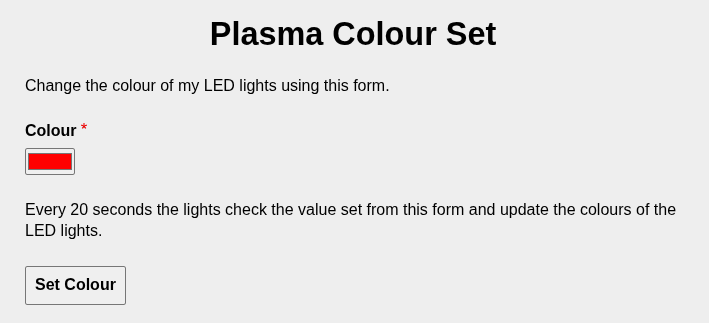
Update 16th Sep 2026: I have since changed the colour set form for a new version of this project. The form used to look a bit like this:

Add new comment