CSS

Posts about Cascading Style Sheets.

Using Colour Schemes To Create Light And Dark Modes In CSS

Allowing users to switch between light and dark colour schemes on websites is a popular feature. You can often see a small sun or moon icon that allows you to change from light mode to dark colour scheme, or visa versa. Some operating systems and user agents also have the ability to activate a dark colour scheme, which websites also pick up and use.

This feature is so popular, in fact, that a number of browser extensions exist to allow users to force websites to be shown in certain colour schemes, the most popular ones making the site dark. Having a dark colour scheme on a website aids in readability, especially for people who have ADHD and similar disorders.

From a person perspective, having a dark colour scheme in a website means that I can view the content in the middle of the night without causing myself eye strain or disturbing anyone else. I often have trouble sleeping so the ability to read articles in the dark has become quite important to me.

Creating A Simple Pie Chart With CSS

A pie chart is a great way of showing the relationship between numbers, especially when showing percentages. Drawing a pie chart from scratch takes a fair amount of maths to get working and so people usually go for third party charting libraries in order to add charts to the page.

I recently came across a technique that allows you to create a pie chart using just CSS, which means you can create simple charts without including massive charting libraries into your page loads. This makes use of just a few lines of CSS, using conic-gradient() CSS function.

The conic-gradient() CSS function is part of the background style attribute and is part of a family of functions like radial-gradient() and linear-gradient(). It is used to create a gradient rotated around a central point and is opposite the radial-gradient() function that draws the gradients radiating away from the centre.

Simple Horizontal Segmented Bar Chart With CSS

Bar charts are powerful ways to show the relationships between different data items. If the data you want to show is discrete then a simple horizontal segmented bar chart is a good idea. You can easily change a collection of numbers into a related set of attributes.

To display this bar chart you don't need a large JavaScript library or an backend charting system, you just need a few lines of markup and some styles. Here is all of the markup needed to generate the bar chart. This consists of a wrapper element and four inner elements that make up the data of the bar chart. Note that the width of each element is pre-calculated to be 25%. I'll address the maths involved in this later in the post.

Displaying Tables As Block Elements On Mobile

The experience of using tables in websites whilst on a mobile can be pretty poor. Things tend to get a bit squashed and displaying the information can be a challenge just to fit the table onto the screen.

I was recently faced with a similar problem where I had a particular design in mind for the mobile version of the table. The solution I found was base based on some responsive table designs from CSS-tricks. I'm certainly no designer, but the what I created worked for the situation I was trying to solve.

The basic idea is that instead of treating the table like a table, change all of the table elements to block elements when displaying on mobile. This meant that when viewing the table in a mobile view it would be rendered in a different way, allowing it to be shown in a mode that was more mobile friendly.

Let's use the following table filled with some data.

Show The First N Items In A List With CSS

A common design method is to use list elements to create the layout of a menu or a section on a page. This is all fine until the users come along and create lots of list items that mess up the layout of the page. In CSS it is possible to show only the first few items in the list so that your users can't mess up the layout.

To show only the first 2 items in a list use the adjacent sibling combinator to hide the third element and everything after that.

li + li + li {display: none;}

You can add as many li items to this list as you need to to ensure that the layout of your page works with the correct number of elements.

You can also do the same thing in CSS3 using a default display:none on all list items and then just showing the first 2 items in the list using the :nth-child pseudo-class.

What Browser Supports What CSS Styles?

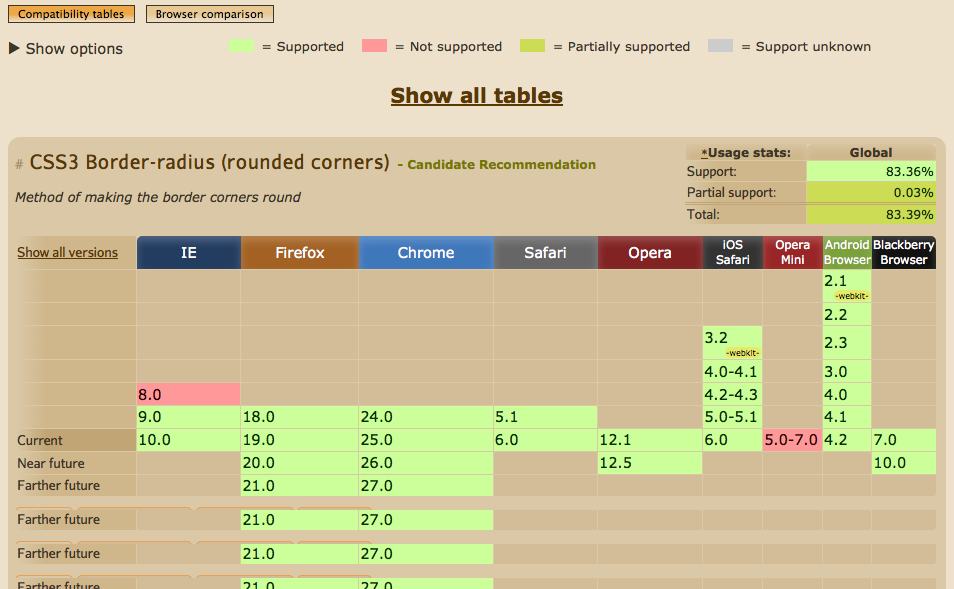
Ever sat there and pondered which browsers support what css styles? If so I’d like to quickly introduce http://www.caniuse.com. This is a great tool and sometimes the quickest way to find answers to your questions. But what about W3Schools; I hear you say. W3Schools does have a comprehensive list of styles, complete with examples of how to use them and a list of properties that you can use. However, what I find W3Schools fails on is a comprehensive outline of browser support.

caniuse.com

caniuse.com provides you with a fool-proof table of browser support. It also outlines support for mobile browsers. Possibly one of the quieter features of caniuse.com is the ‘Known Issues’ tab underneath the table. So, ever tried to get rounded corners to work on a table with a background colour on the table header cells? These known issues can help you quickly debug your css.